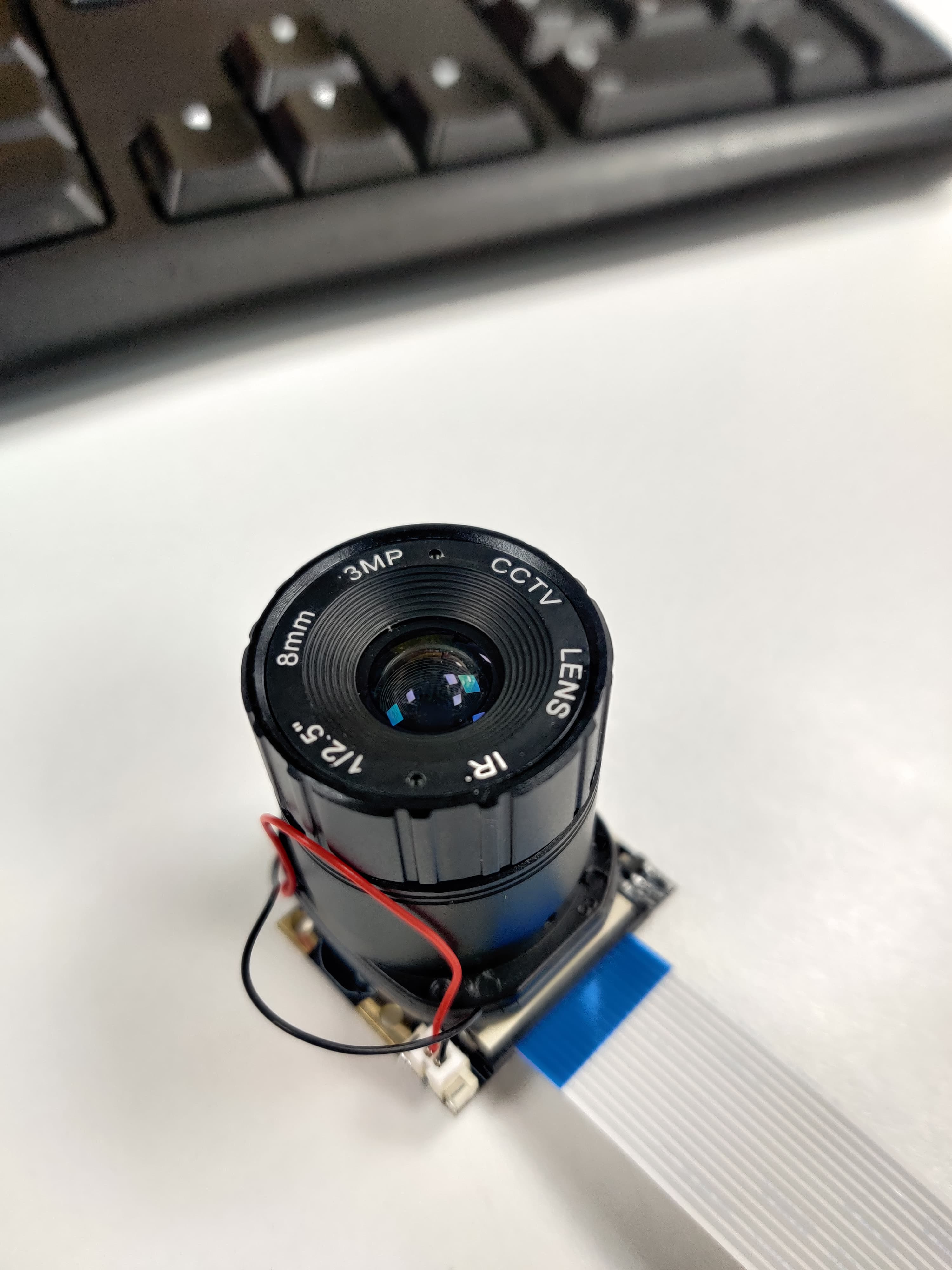
Tim, First, thank you for all of your fine work.
I’m still working through issues with facial_req.py. I still receive a warning but it appears to prevent the app from working.
This is the message returned:
[ WARN:0@6.656] global /home/gordon/opencv/modules/videoio/src/cap_gstreamer.cpp (1405) open OpenCV | GStreamer warning: Cannot query video position: status=0, value=-1, duration=-1
^CTraceback (most recent call last):
File “facial_req.py”, line 40, in
boxes = face_recognition.face_locations(frame)
File “/home/gordon/.local/lib/python2.7/site-packages/face_recognition/api.py”, line 121, in face_locations
return [_trim_css_to_bounds(_rect_to_css(face), img.shape) for face in _raw_face_locations(img, number_of_times_to_upsample, model)]
File “/home/gordon/.local/lib/python2.7/site-packages/face_recognition/api.py”, line 105, in _raw_face_locations
return face_detector(img, number_of_times_to_upsample)
Very glad you fixed it ! What hardware are you using? Normally when it locks into my face I get what feels like around 5-10 FPS. You can also overclock your Raspberry Pi which will let you get more performance out of it but you will want to have a passive/active cooling system to keep the CPU from overheating.
Hey Gordon, Big thanks mate really enjoy putting these tutorials together. Can I ask what version of Raspberry Pi OS you have flashed your Micro-SD card to and whether you’re using a USB camera or Pi Camera connected via the Ribbon cable to the CSI port of the Raspberry Pi?
Also what happens when you type and enter the below into your terminal.
Hey mate, just for me run these following lines of terminal commands. If you run into the same problems I’ll figure out what the go is.
mkdir ~/opencv/build
cd ~/opencv/build
*cmake -D CMAKE_BUILD_TYPE=RELEASE *
Hopefully, (fingers crossed), that will get you over this hump and you can finish off the rest of the terminal commands. Shoot me a reply if you keep/run into any other issues.
Heyya mate, can I ask what version of Raspberry Pi OS you are using? I’ve run into this issue before with the most recent ‘Bullseye’ OS release as the compatability with OPEN-CV hasn’t been ironed out yet.
If you are into creating custom machine learning computer vision libraries give Edge Impulse a look at. https://www.edgeimpulse.com/
This will let you piggie back off other established models (like the COCO object detection library) and add in any new objects of your desire. This is definitely something I’m very interested in (so hopefully a tutorial on this soon).
Then if that doesn’t work before I attempt to replicate your situation exactly over here the issue does appear to be some kind of compatibility issue with Numpy. So let’s try updating it using a couple of methods. Type and enter the below into the console.
pip3 install --upgrade numpy
If that doesn’t fix the problem type and enter the below into your terminal.
First, thank you, I am excited to try this. I did run into a problem right away though. After installing the latest version of raspberry os, it appears that some packages are no longer available.
apt install libgtk-3-dev libqtgui4 libqtwebkit4 libqt4-test python3-pyqt5

Reading package lists... Done

Building dependency tree... Done

Reading state information... Done

Package libqtgui4 is not available, but is referred to by another package.
This may mean that the package is missing, has been obsoleted, or
is only available from another source

**E:** Package 'libqtgui4' has no installation candidate
**E:** Unable to locate package libqtwebkit4
**E:** Unable to locate package libqt4-test
Awesome! I’m keen for you too . Before you dive in any deeper, there isn’t good compatibility between Open-CV and the Newest ‘Bullseye’ Raspberry Pi OS. Thats the reason why those ‘Unable to locate package’ error messages are popping up. Is very important to have all those packages for Open-CV to run.
For some reason when I run any of the scrips they don’t seem to work properly they just have a purple filter over the camera and nothing else. I get this error code:
[ WARN:0@4.204] global /home/pi/opencv/modules/videoio/src/cap_gstreamer.cpp (1405) open OpenCV | GStreamer warning: Cannot query video position: status=0, value=-1, duration=-1
INFO: Created TensorFlow Lite XNNPACK delegate for CPU.
Hey tim , I am nee to rasberry pi all the codes works fine in thonny ide but when i run it on LXterminal my “headshots.py” runs fine but the “train_model .py” and “facial_req” shows no module facial_recognition . Where as thonny ide the codes runs fine it takes my image trains it process it and also my face gets recognized. Please help me tim asap
Hey mate, I don’t remember the Facial Recognition requiring a Tensor Flow Lite Delegate, can you create a couple of screenshots of your problem and I’ll jump right into it.
Also Lemme just do the quick triple check that you are; 1. Flashed and running the older ‘Buster’ Raspberry Pi OS. 2. Have the camera correctly connected and enabled in Raspberry Pi Configurations. 3. When you type | raspivid -t 0 | it opens up a live preview of what the camera is seeing on the desktop.
Hey mate, likely the reason why the scripts run in Thonny IDE and not in the Terminal has to do with what permissions/environmental paths Thonny has as compared to the Terminal. Try for me running the Scripts in the terminal in the exact same way as you have been but prefix the line with | sudo |.
Sudo will make the line run with admin privileges and I reckon will fix you right up.
Hey, Sorry I sent this to the wrong forum this was for the “hand recognition and finger recognition” page.
The camera works as normal when I take a picture or a video using the terminal commands or when using basic python code to see the camera in thonny ide, but it just goes purple and laggy when I use the scripts in the video. I switched to a raspberry pi v2 camera and it worked first time.
Hey mate, I had a feeling it was in the wrong place but that’s all good .
It must be due to different drivers running inside each of these cameras. It may be possible to run the same driver on the above camera that the Raspberry Pi V2 camera has. The Raspberry Pi V2 Camera used the V4L2 driver. Have a look here to see how to install this driver.
I haven’t used your above camera so can’t know for sure whether that will work, but seems worthy of a go.

 ! What hardware are you using? Normally when it locks into my face I get what feels like around 5-10 FPS. You can also overclock your Raspberry Pi which will let you get more performance out of it but you will want to have a passive/active cooling system to keep the CPU from overheating.
 really enjoy putting these tutorials together. Can I ask what version of Raspberry Pi OS you have flashed your Micro-SD card to and whether you’re using a USB camera or Pi Camera connected via the Ribbon cable to the CSI port of the Raspberry Pi?