Jaryd just shared a new tutorial: “How to set up YOLO Computer Vision on a Raspberry Pi | Conda & Ultralytics”
In this guide, we will be learning how to install the Ultralytics YOLO Vision Package on a Raspberry Pi with Conda. This package is going to allow you to run nearly any YOLO model supported by Ultralytics, and we will also give you some demo code fo…
Read more
Oh dear! Python: I have got the thing of the latest install of numpy, which is 2.4.1 but:
conda install numpy=2.4.1
Doesn’t work. It rejects the 2.4.1.

Hey there, @Bill293536,
What is the specific error message that you’re getting when you use that command?
I have tried the get this to work! Several time from the start.
But it keeps failing.
Python:
import cv2
from picamera2 import Picamera2
from ultralytics import YOLO
Run…
ModuleNotFoundError: No module named ‘libcamera._libcamera’
What have I done wrong?
Hey @Bill293536,
Libcamera needs to be echo’d in from the pre-installed system packages with the line:
echo ‘/usr/lib/python3/dist-packages’ > /home/pi/miniforge3/envs/ultralytics-env/lib/python3.11/site-packages/system-packages.pth
Libcamera is notoriously difficult to install on the Pi, let alone compile, so Raspberry Pi recommends us to copy it in with the line above.
Let us know how it goes!
“The best way to get around all this would be to start from the beginning with a fresh install. Would it be possible for you to reimage your Pi’s SD card so that we can be sure you don’t have any unexpected libcamera installations floating around?”
Very, very carefully!
I still get errors:
picamera2/libcamera
ModuleNotFoundError: No module named ‘libcamera._libcamera’
Oh dear!
1 Like
Hey Bill, can you confirm if you followed Jaryd’s instructions or not? I think this post appears a copy of one from your other thread.
Yes.
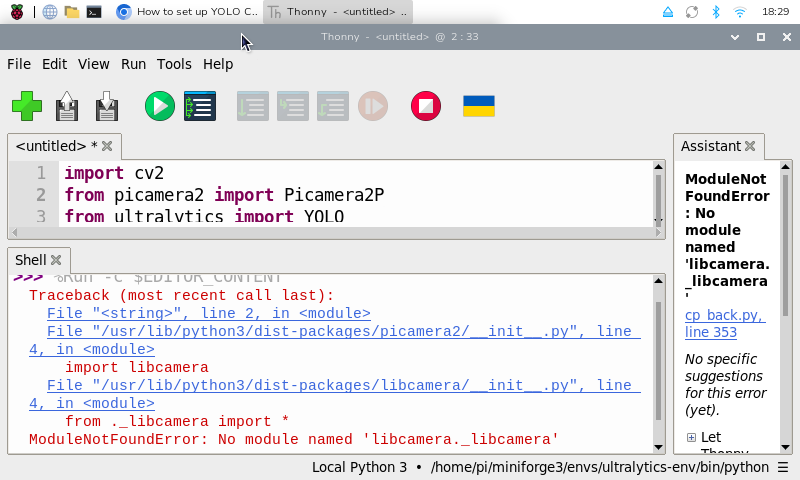
Has this been resolved? I am seeing the same thing. Thonny returns the error message:
%Run -c $EDITOR_CONTENT
Traceback (most recent call last):
File “”, line 2, in
File “/usr/lib/python3/dist-packages/picamera2/init.py”, line 4, in
import libcamera
File “/usr/lib/python3/dist-packages/libcamera/init.py”, line 4, in
from ._libcamera import *
ModuleNotFoundError: No module named ‘libcamera._libcamera’
1 Like
I am at the end of the tutorial, where I test the sample code. I have tried reinstalling everything twice, line by line, I have also reinstalled the whole Raspberry OS. I have tried plugging in the camera in the other port (I use Pi 5). Please anyone help with this error.
1 Like
We found the issue to be that this guide only works on Bookworm OS. Trixie OS is the new default version, so you will need to reflash your Pi with Bookworm which will be one of the legacy 64-bit OS options.
Hope this helps!
2 Likes
Thanks, @Jaryd. I was hoping to avoid this, but I will give it a go if I can’t find a better solution.
2 Likes
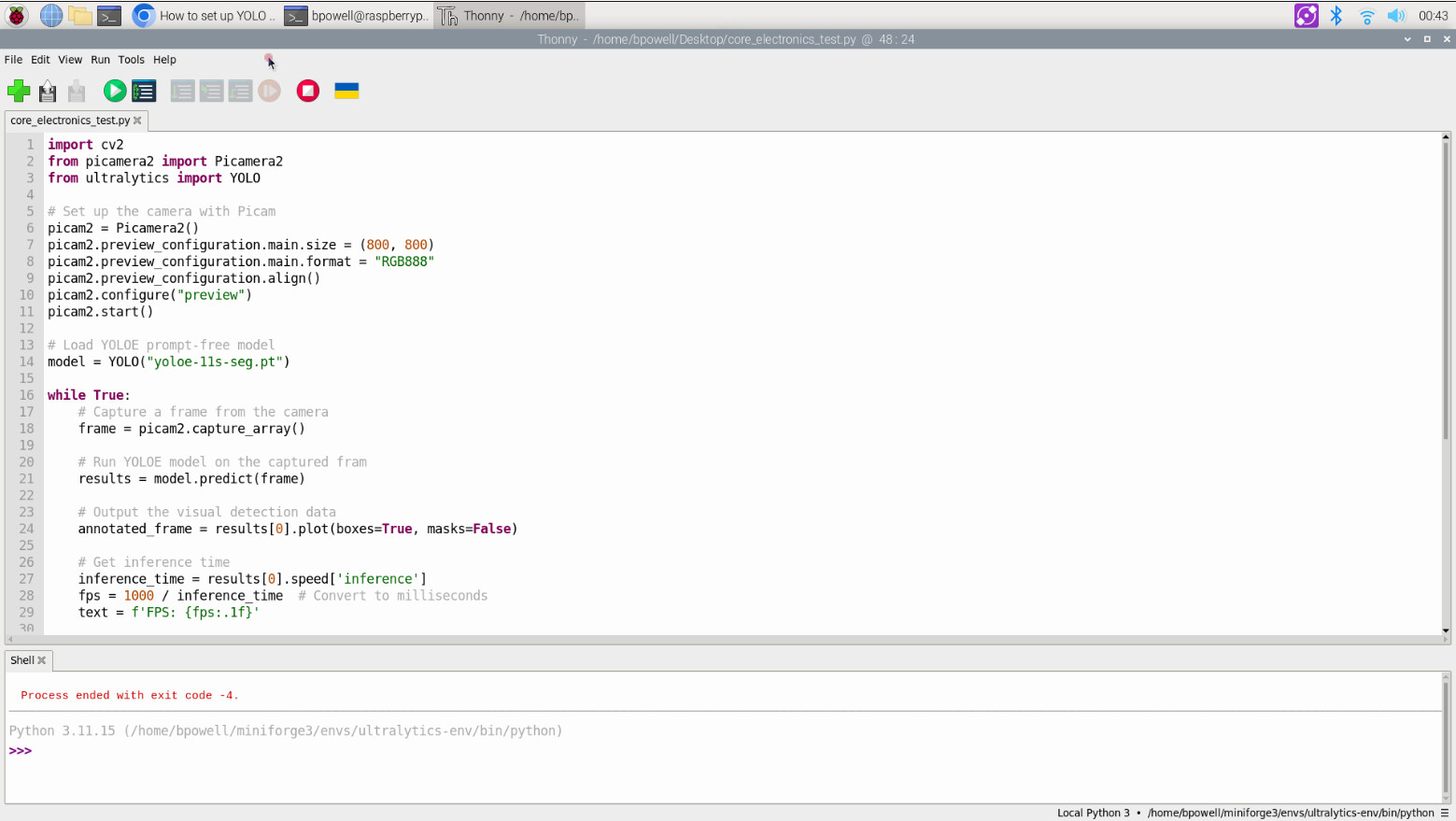
Hi, @Jaryd. I am a student trying to use this guide to download YOLO so that I can use it for a project. I have minimal experience with raspberry pi and python coding. I have followed all of these steps, including the comments. I am now receiving this “Process ended with exit code -4” without the camera ever turning on. Any suggestions would be greatly appreciated.
Hey there, @Bryce315983,
Exit Code -4 is a generic error that could cover a lot of potential situations. So we can get a better idea of what could be going on in your system, could you please return the output of the following:
For Bash:
cat /etc/os-release
In addition, so we can rule out this be an issue with Thonny, could you please run this code from Bash from your venv and let us know if you receive the same error.
Thank you for the response. I have attached screenshots with the error messages received. I am on a Raspberry Pi 4 Model B if that helps at all.


Hey there, @Bryce315983,
Well that’s a new one.
‘Illegal Instruction’ is not an error with the Python script, its a bash error, and one that is maddeningly generic. It usually means that the CPU was given a task that it is incapable of doing, hence it being ‘Illegal’.
May I ask exactly what model of Raspberry Pi 4 that you are using?