Having trouble obtaining acebott software for my QD 001. can someone help. I am following the “getting started with ACECode” directions as supplied but I get bogged down with extracting files. I have downloaded a zip file “ACECode Setup-Windows” and having trouble proceeding. I am using a PC with Windows 10. Cheers.
1 Like
Hi Jon
Welcome to the Forum.
Firstly what the hell is a QD 001.
Core doesn’t want to know about it.
Google had heaps of hits including a Rifle Sling would you believe.
BUT they did have only 1 which says it is a brushless motor controller. Is that what you have??
It would not do any harm if you say “QD 001 Brushless motor controller” I don’t think so we of the great unwashed might have some idea what you are referring to without too much searching.
Anyway, got that off my chest. Not much of a welcome was it?? Don’t take any notice of me, I have a bit of a rave sometimes. And for what it is worth you are not alone. A lot of others sprout some unknown number and expect everyone else to know what they are talking about.
If you could confirm that what you have is the brushless motor controller I feel confident you will get all the help you need.
Sorry in advance.
Cheers Bob

Hi Jon, and everyone,
Welcome to the forum!
I believe this is the product: ACEBOTT ESP32 Smart Car Starter Kit with Mecanum Wheel | Buy in Australia | CE10126 | Core Electronics
It’s marked on the box but the Core SKU is different.
I recall there was an issue with the filepath length being too long, Core had a download link in the description that should work.
Otherwise altering the zip file name should solve the issue.
Bob means well and there is a lot to learn from him, there have been some topics recently lacking some key info.
1 Like
No worries.
I have gone through the procedure of downloading the ACECode software as per the “Getting started with ACECode” tutorial however at step 5, no shortcut appeared on the PC desktop. Also I cant find the folder where ACECode was installed to. I am confused. Is there someone out there who has successfully got one of these Smart Cars to work?, and to help me get mine to work.
I am not a “maker” and don’t need to get into the intracacies of programming etc. I just like to build things and get them to work. I have had some experience of programming etc with Arduino and had some success. Cheers from Jon.
Hi @Jon167656 ,
Assuming you are following this getting started guide, the location of the installed folder is decided as you navigate through the installation setup (specifically, step 2 of the guide).
When running through these steps on my PC, the default location is C:\Program Files\ACECode so this may be a good place to start
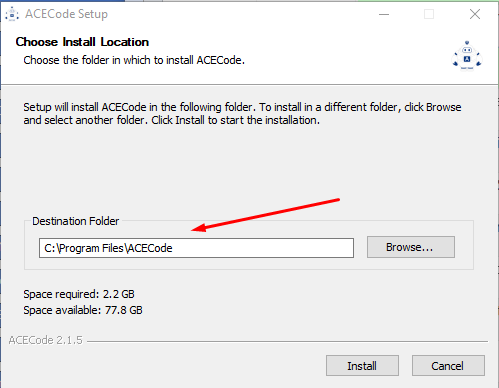
If you are not able to locate the shortcut on your desktop once this process has finished you should be able to launch ACECode directly by opening the program from that folder.
Let us know how you go!
I appreciate any help from you guys, however I am still having quite a struggle getting this ACECode software to make any sense for me. I have downloaded the file “ACECode Setup-Windows” and it is sitting in the “Downloads” Folder. When I click on it I get an “extract” prompt and when I double click on it i find 2 files, one of which is an Application Type “ACECode Setup 2.1.5”. Is that the correct version of the set up file. Cheers for now.
Hi Jon
If you have recently downloaded this from somewhere one would assume it to be the latest.
Reading between the lines it looks like you have not installed this “ACECode” yet. I don’t know what the other file is, could be a “readme” or something and you have not enlightened us.
BUT double clicking on the set up file should install the main software you want and also install a screen shortcut. I suggest you just follow the screen prompts making sure all “I agree” boxes are ticked as you go otherwise the installation will stop.
Works every time for me.
If you don’t get the option to create a shortcut sing out as there is a way of doing this later.
Cheers Bob
1 Like
OK, have run the setup file. I observed the progress of the installation, and at the prompt “Finish” I clicked on it and then nothing. I did a search for ACECode and all it finds is the setup file. Cant find a folder ACECode anywhere. No shortcut appeared on the desktop. It appears obvious that I am doing something wrong and I just cant figure it out. Cheers, Jon
1 Like
Hi Jon
OK so lets see if that installed.
Go back to Samuel’s post and see if you can find it in the default spot. I am assuming you did not nominate a location and let it use the default. This should be
You should find the “exe” file in this folder. Double clicking on this should open it.
When you have established that this works we can then create a desktop short cut icon.
Cheers Bob
1 Like
Hi Bob, There is no C:\Program Files folder on my PC that I can find. There is a folder
Windows (C:)\Program Files but no subfolder called ACECode. BTW, when I ran the Setup 2.1.5 file I was not prompted for the destination folder. Cheers Jon.
1 Like
Hi Jon
Well I just downloaded ACECode from here
Unzipped, installed and ran the software successfully
I double clicked the original download
2 files appeared, one is a tutorial
Double clicked the exe file.
A pop up appeared informing me that this file needs to be unzipped to extract a few other files required for successful installation. Did this.
Double clicked exe file again.
After some security warnings probably confined to my computer I accepted the risk and installed the program.
The box marked open program was selected (default).
Clicked finish and the program opened.
Short cut icon is installed on desktop OK.
Can be found here
Select File Explorer
This PC
Windows (C)
Program files
Here you will find "ACECode. Top of the list on my machine.
Open ACECode. 4 Sub folders. Top of the list is ACECode Application file. This will run the application if you do not have a desktop icon.
If you decide to re download and try again the system should warn you to delete any previous versions or I imagine bits used in your previous attempts. I strongly advise you do this as I reckon Windows is a bit fickle at best. (one reason to use a Mac)
My Windows computer
HP laptop. Windows 11
Cheers Bob
This appeared right at the start of the installation process. I just used the default.
I
Bob, I found the folder and have copied it to my Program Files Folder. I have found the ACE Code application file. I double click it, a window titled ACE Code opens, nothing happens, and the window closes. Jon
Side comment here. A lot of the time you cant just move a folder and expect things to work. There are often (but not always) things can can point to your application e.g. via an environment variable, register setting or a config file file of some sort.
Unless you know you can move it, it would either remove it completely and re-install to where you want it or leave it were it is.
Hi Jon
From past experience just copying the folder most often does not work. You have to actually “install” most applications. There are some exceptions. I have some software that I installed to a Windows Xp then W 7 and I am running them on a W 11 machine. But these are the exception not really the rule. Still have not got Music Match Jukebox to work past XP. The best Music Management software ever made and Yahoo stuffed it up then dropped support.
Really if I were you I would be inclined to get rid of all the AECode bits and start again. The whole procedure including downloads only took me about an hour or so.
Cheers Bob
1 Like
Hi all, thanks for all the advice and tips. Actually I was about to go down that track in light of the points made by Bob in his last post. I will go down the uninstall route, then delete any remaining files and folders, and start again. Just hope my PC still works afterwards. Cheers for now.. Jon
Hi Jon
When I opened up the folder to show all files including the application itself I am sure down near the bottom was an uninstall folder. Windows “Uninstall” facility probably uses this so if you use that it should get rid of everything (one would hope but you never know. One reason for using a Mac.).
Cheers Bob
1 Like
Hi Bob. I do a search in “This PC” and find a Folder “Uninstall ACECode” under C:\VTRoot\HarddiskVolume3\Program Files\ACECode. When I attempt to open it I am told that I am not authorised. When I attempt to navigate to C:\VTRoot\HarddiskVolume3\Program Files\ACECode it, I cannot reach it. Any thoughts? Cheers, Jon.
Hi Jon
It is likely that the windows uninstall utility uses this and you might not have direct access. You might if you can log in as administrator. Not sure how to do this as I try to avoid Windows where I can.
This uninstall utility is available under Control Panel. I have Win 11 and not sure how to get to this as I created a desktop short cut icon a fair while ago and access control panel rom there. Once you get there it is pretty much the same format as earlier versions of Win.
Cheers Bob
Try typing “Control Panel” in the search box at the bottom of your screen if you have trouble finding it.
Hey @Jon167656 ,
I did a quick install / uninstall test on a Windows PC. If you run the setup program again without changing anything, it should default to the same install location. The install wizard picks up on ACECode already being installed in this location and prompted me to uninstall it first, so it should hopefully do the same for you.
To summarise:
- Run the ‘ACECode Setup 2.1.5.exe’ install program
- Note the default install location once this program opens. For me it was ‘C:\Program Files\ACECode’
- Click ‘Install’

This caused the following prompt to appear, which, when clicking ‘OK’, opened the uninstall wizard.
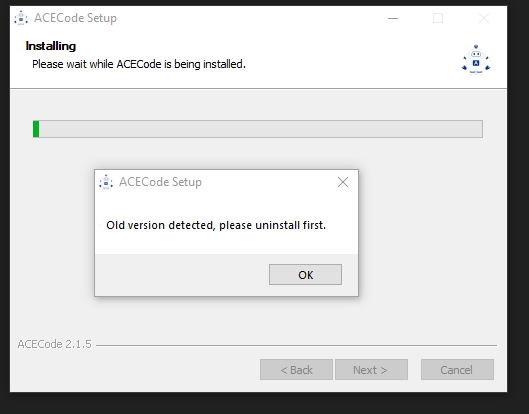

Let us know how you go with that!